* Not mobile friendly yet *
Git & Github
Git
It is used for :
- Tracking code changes
- Tracking who made changes
- Coding collaboration
- Tracking who made changes
- Coding collaboration
What does Git do?
Manage projects with Repositories
Clone a project to work on a local copy
Control and track changes with Staging and Committing
Branch and Merge to allow for work on different parts and versions of a project
Pull the latest version of the project to a local copy
Push local updates to the main project
Clone a project to work on a local copy
Control and track changes with Staging and Committing
Branch and Merge to allow for work on different parts and versions of a project
Pull the latest version of the project to a local copy
Push local updates to the main project
Working with Git :
Initialize Git on a folder, making it a Repository
Git now creates a hidden folder to keep track of changes in that folder
When a file is changed, added or deleted, it is considered modified
You select the modified files you want to Stage
The Staged files are Committed, which prompts Git to store a permanent snapshot of the files
Git allows you to see the full history of every commit.
You can revert back to any previous commit.
Git does not store a separate copy of every file in every commit, but keeps track of changes made in each commit
Git now creates a hidden folder to keep track of changes in that folder
When a file is changed, added or deleted, it is considered modified
You select the modified files you want to Stage
The Staged files are Committed, which prompts Git to store a permanent snapshot of the files
Git allows you to see the full history of every commit.
You can revert back to any previous commit.
Git does not store a separate copy of every file in every commit, but keeps track of changes made in each commit
Git Repository

Once you have navigated to the correct folder, you can initialize Git on that directory(folder) with git init

New Files

To remove a file use rm

ls will list the files in the directory.

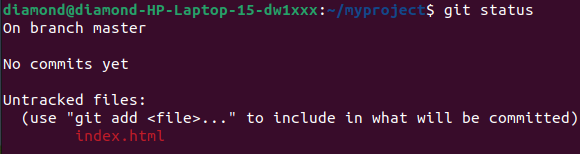
Then we check the Git status and see if it is a part of our repo(repository).
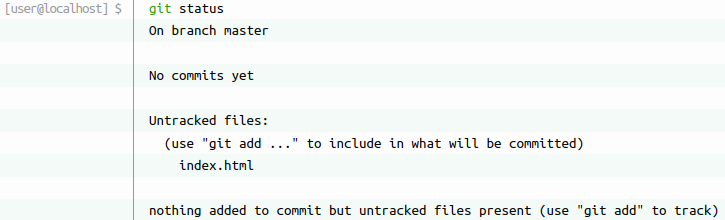
Now Git is aware of the file, but has not added it to our repository. Files in your Git repository folder can be in one of 2 states:
- Tracked : files that Git knows about and are added to the repository
- Untracked : files that are in your working directory, but not added to the repository
When you first add files to an empty repository, they
are all untracked. To get Git to track them, you need
to stage them, or add them to the staging environment.
- Untracked : files that are in your working directory, but not added to the repository
Git Staging
adding file & checkings status :

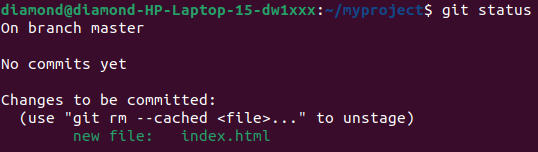
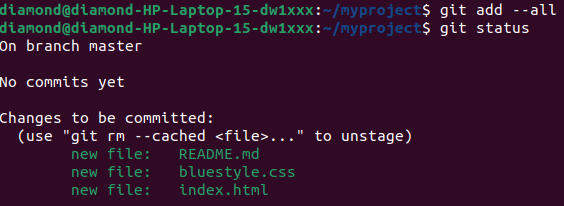
You can also stage more than one file at a time. Using --all or -A instead of individual filenames will stage all changes (new, modified, and deleted) files.
stage/add 2 files and updating exsisting file
Git Commit
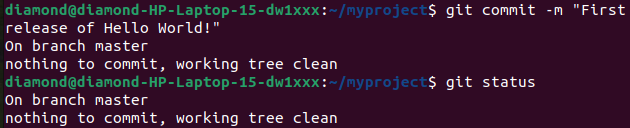
commit tracked files(staged) & checking status :
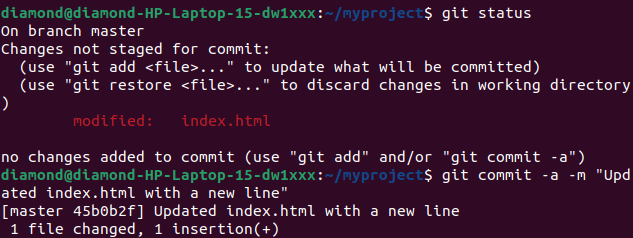
It is possible to commit changes directly, skipping the staging environment. The git commit -a option will automatically stage every changed, already tracked file.
Skipping the Staging Environment is not generally recommended.
Skipping the stage step can sometimes make you include unwanted changes.
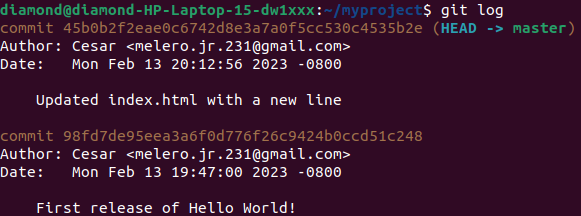
To view the history of commits for a repository, you can use the log command.